Advanced Meshing: Work Smarter with Complex Geometry in Ansys Mechanical
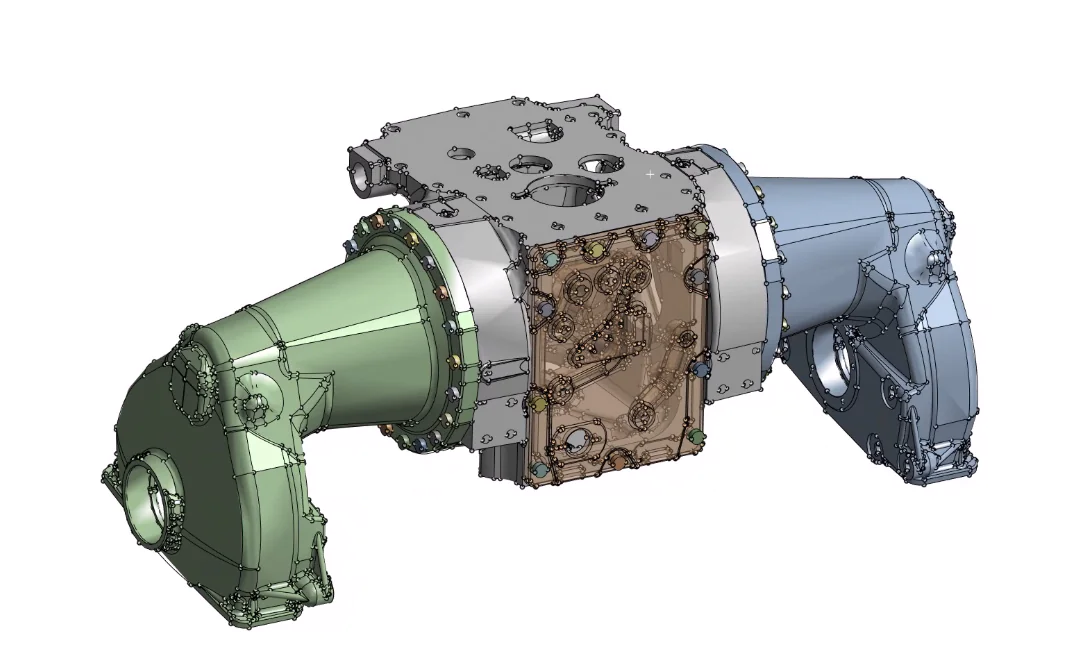

What if preparing complex geometry for simulation didn’t have to mean hours of CAD clean-up?
Anyone working with simulation knows the challenge. Imported models can contain small gaps, unnecessary details or problematic topology. Sometimes the CAD model isn’t available at all. And sometimes you simply need a good mesh without spending more time than necessary preparing the geometry.
During our Coffee with an Expert: Advanced Meshing webinar, EDRMedeso’s Lisa Lindqvist explored how Mesh Workflows in Ansys Mechanical can give engineers new ways to approach these challenges. The session sparked plenty of questions about Wrap, Mesh Morphing, STL files, hex meshes and complex shell models.
We’ve gathered some of the most interesting takeaways.
One of the most practical reasons to explore Mesh Workflows is simple: reducing the amount of manual geometry preparation needed before meshing.
In the rear axle example demonstrated during the webinar, the geometry would otherwise have required significant manual CAD clean-up before it could be meshed. Using Wrap provided another route, while topology repairs can also be carried out inside the Workflow if the original CAD geometry isn’t accessible.
And this isn’t only useful for highly repetitive processes.
A Mesh Workflow can bring value to a single complicated component too. If you can avoid significant manual clean-up on one difficult model, that alone can make the approach interesting.
Small gaps and unwanted details are common headaches when working with imported geometry.
This is where Wrap gets interesting.
If gaps are small enough in relation to the local Wrap size, they can automatically be closed. You can control the Wrap sizing to suit the geometry and perform topology repair operations, such as filling holes, before wrapping.
But how does Ansys know which details to keep?
In Lisa’s demonstration, the Wrap sizing was larger than the smallest holes and gaps, so these features were simply covered. A Geometry Fidelity control was then added to selected fillets, helping the wrapper better resolve their curvature and topology.
This gives the engineer an important level of control: simplify what doesn’t matter, while preserving greater fidelity where it does.
One of the questions from the audience was particularly important: What happens if I’m not satisfied with the automated result?
You aren’t locked in.
Within a Workflow, you can return to an earlier step before the Wrap. If you clear the Workflow completely, the original part becomes active again in the Geometry branch.
The geometry used as input becomes dormant while the Workflow creates new parts or topology. Deleting the original solid in the Wrap step is therefore a clean-up operation within that process.
In other words, you can explore different approaches without treating every operation as a point of no return.
Mesh Morphing opens another interesting door, particularly when you need to change an existing model.
Imagine you’ve scanned an as-built or deformed component. Rather than creating new geometry from the scan, you can mesh the original part and use Match Morphing to fit that mesh to the scan.
Direct Morphing can also replace some simpler CAD operations. This can reduce the need to move backwards and forwards between CAD and mesh. Morphing operations can also be parameterised for design studies without having to connect those geometrical parameters in CAD.
And if all you have is an external mesh? There are options there too. A mesh can be imported into a Workflow, allowing certain CAD-like operations without the original geometry being available.
This leads neatly to another question from the webinar: Can a Mesh Workflow start with an already meshed part?
Yes.
In the Workflow Input step, the input can be changed from Geometry to Mesh.
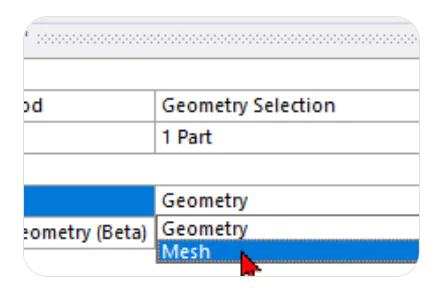
That opens up useful possibilities when the starting point isn’t clean CAD geometry, but an existing mesh that needs further work.
STL data can also be incorporated into the process.
For example, an STL coming from a topology optimisation can be imported as geometry in Mechanical or read into the Workflow using the Read CAD step. The STL can then be used as the scope for Wrap.
For engineers increasingly working with geometry coming from different sources, this flexibility can be particularly useful.
Yes, but this is one area where it’s worth understanding the limitations.
Hex meshes can be morphed. EDRMedeso noted that inflation layers had not been specifically tested in this context, and depending on the morph operation there could be a risk of those layers becoming warped.
For engineers looking to build a high-fidelity hex mesh for explicit simulations, Mesh Workflows aren’t currently a simple plug-and-play solution. The parts may still need to be split appropriately to create a MultiZone volume mesh.
Wrap also has limitations when the goal is a fully hexahedral mesh. MultiZone requires suitable geometry, while combining a quad surface mesh with Hexa Core introduces a transition layer of pyramids and tetrahedra.
That doesn’t mean you’re limited to a single route. Workflow steps can be combined creatively, for example by meshing a surface and then extruding or revolving it to create something similar to a sweep.
That’s really what Mesh Workflows are about: giving engineers more ways to solve the problem.
A Workflow can also become a reusable engineering asset.
In the rear axle demonstration, Lisa used a Workflow she had created earlier, exported as an.emx file and then imported into a blank Workflow.
For recurring types of geometry or meshing tasks, this provides a way to start from an existing Workflow rather than rebuilding the same approach from scratch.
And if the job isn’t repetitive? That’s okay too. Mesh Workflows can still prove useful for a one-off model if they help avoid difficult manual geometry preparation.
Another discussion during the webinar looked at grouping similar geometry.
You can create your own groups of Named Selections by changing the Scoping Method from Geometry to Worksheet and using logical operations to filter particular entities. Alternatively, AI shape analysis can automatically identify and cluster parts with similar size and shape.
For CAD instances, instance meshing provides another option. Mesh controls can be scoped to the instances and the mesher can replicate the mesh between them rather than meshing every part individually. The webinar demonstrated this using bolts.
Not every meshing challenge has an easy, universal answer, and that’s important to acknowledge.
One attendee described a welded tank-cell model using shell elements where operations involving shared topology could result in problematic imprints on cylindrical geometry.
Without seeing the actual model, there isn’t a definitive answer. However, Lisa highlighted the Connect feature as one approach worth exploring. Conformal shell meshes can be created within a Workflow using Connect, and Lisa generally prefers Connect over shared topology when working with surface bodies.
And sometimes that’s exactly where talking to an expert becomes valuable: not asking“Which button should I press?”, but rather“What’s the smartest approach for this particular model?”
Mesh Workflows aren’t about replacing engineering judgement with automation.
They’re about giving engineers more flexibility when geometry gets difficult.
Whether that’s wrapping away unwanted details, morphing an existing mesh, working with an STL, starting from mesh rather than CAD, repairing topology or creating reusable Workflows, the goal is the same:
Spend less effort fighting the geometry and more effort getting your model ready for simulation.
At EDRMedeso, that’s exactly the kind of challenge we like to solve.
Every model is different. If you’re struggling with complex geometry, imported models, topology issues or simply want to explore whether Mesh Workflows could improve your current process, let’s take a closer look together.
Find out more about Ansys Mechanical
Watch On-demand webinar: Advanced Meshing with Mesh Workflows in Mechanical